A plain walkthrough of connectors, plus prompts you can reuse today
So, you just wrote the perfect reply to a client email. Then you had to go find the thread. Copy it. Paste it into Claude. Do the whole thing over again for the next message. That’s the real cost of working with Claude out of the box. It’s not that Claude is slow. It’s that you’re doing the fetching by hand, every single time, and calling it normal because you’ve never seen the alternative.
Connectors change that. They give Claude a way into the apps you already use: your inbox, your Drive, your calendar. Once one is switched on, Claude looks things up on its own instead of waiting for you to feed it. You stop being the messenger between two windows and start asking about your actual work, not a copy of it.
None of this happens behind your back, either. You decide which apps to connect, you approve what Claude can reach, and you can pull that access back in a click. The point isn’t to hand Claude the keys to everything. It’s to stop doing the one job a computer should have been doing for you all along.
How do I turn on my first connector safely?
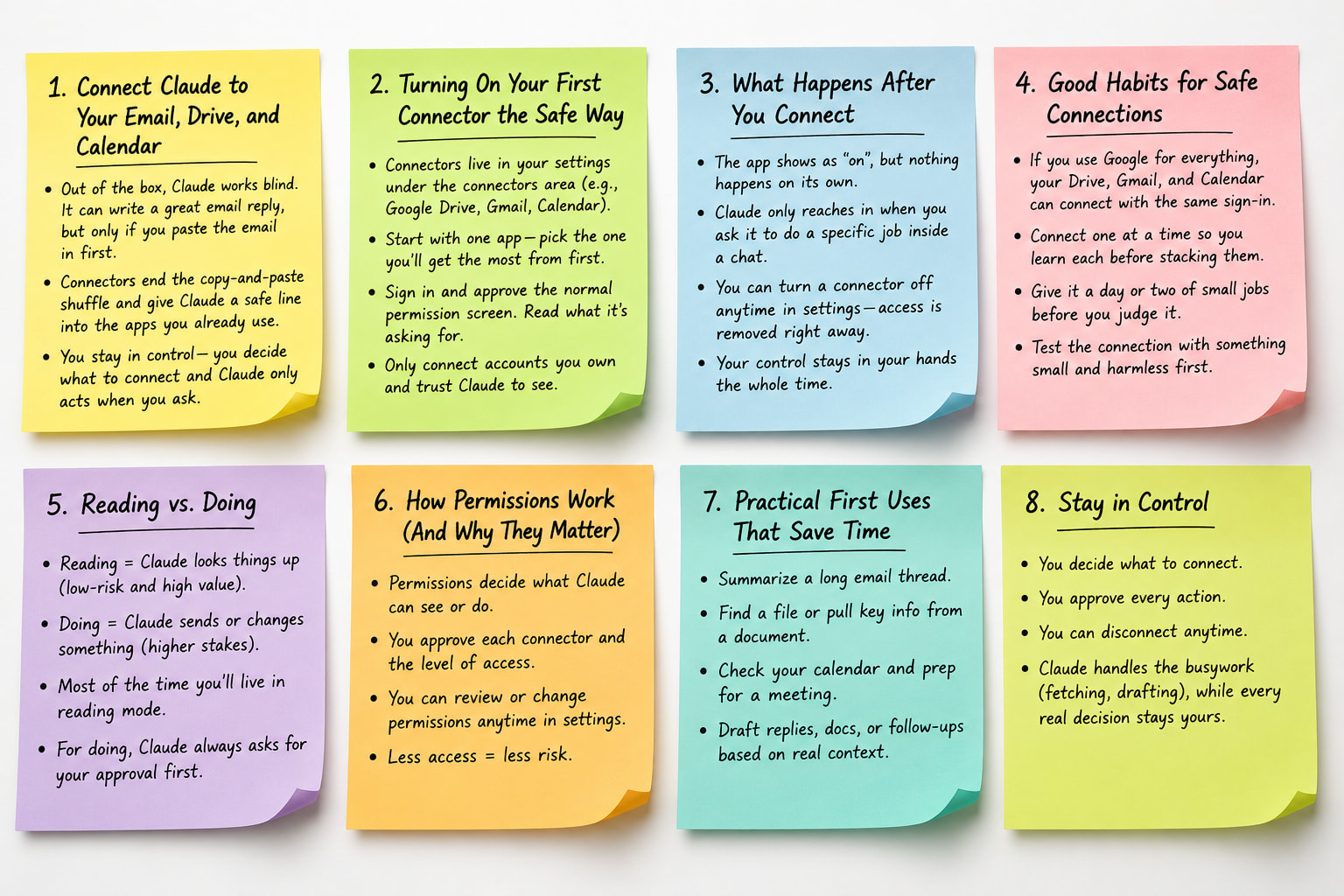
Open your settings and find the connectors section. Pick one app, usually Drive or your inbox, and click to connect it. You’ll see the normal sign-in and permission screen any tool uses. Approve it once you’re comfortable with what it’s asking for. Nothing happens after that. Claude only reaches into a connected app when you ask it to, inside a real chat, for a specific job.
Start with one app, not all three at once. Learning what a single connector does before adding the next one keeps you from switching everything on blind. If you use Google for everything, one sign-in can light up Drive, Gmail, and Calendar together. Turn them on one at a time anyway.
Test the link with something small before you trust it with real work. Ask Claude to find a recent file, or check tomorrow’s schedule. A low-stakes request confirms the connection actually works. And if a connector ever stops responding, it usually just needs a fresh sign-in in settings, with no work lost on your end.
Where’s the line between Claude reading and Claude acting?
A connected app gives Claude two different abilities. Reading means Claude looks something up, like searching files, checking your calendar, or summarizing a thread. That’s low-risk, because looking can’t break anything. Doing means Claude changes something real, like sending an email, creating an event, or editing a file. Claude drafts those actions and stops there. You read the draft, then decide whether to send it.
This split is what makes connectors safe day to day. Claude fetches and drafts, the parts that eat your time. You send and decide, the parts that need a person. Say what you mean and Claude follows the line. “Find and summarize” is reading, and you can trust it on its own. “Draft a reply” stops on purpose before it sends. A draft you reject costs you nothing, which is exactly why it’s safe to lean on.
Spend your first week on the reading side alone, before you touch the doing side at all. Let Claude find and summarize things while you watch how accurate it actually is. Once you trust what it reads, you’ll have a feel for when its drafts are good enough to send. A quick glance does it, instead of a full rewrite.
How do I search my Drive without opening a single folder?
Describe the file instead of naming it. Tell Claude “the pricing sheet from the spring launch,” even if you forgot what you called it. Claude searches a connected Drive and reads the contents of your files, not just the titles. Then it reports back what it found, along with which file it used. From there it can summarize a document, pull one figure from a spreadsheet, or compare two drafts, so you skip opening the file yourself.
Give Claude a rough starting point: a topic, a date, a project name. That narrows the search fast. A blank “find my stuff” gives it too little to work with. The messier your Drive, the more this saves you. A pile of half-named files is exactly where reading the contents beats hunting through titles.
Use this as a starting template:
Search my Drive for [topic or rough description of the file]. When you find it, summarize the main points in plain language and pull out [the specific detail you need, like a price or a date]. Tell me which file you used, so I can open it and check the number myself.
How do I get Claude to actually help with my inbox?
Connect your email and ask Claude to summarize a long thread instead of rereading it yourself. Ask it to find a specific message by describing it, like “the email from the affiliate about the swap.” Ask it to triage a full inbox into what needs a reply today and what can wait. All of this is reading, so it’s safe to lean on without any second-guessing.
The bigger win is turning a thread into your next reply. Ask Claude to read a conversation and draft your response. It answers in context, not from a blank box, because it just read everything that came before you asked. You read the draft, fix a line if you want, and send it. Keep that order every time: draft, read, then send.
Use this as a starting template:
Find the email thread with [name] about [topic]. Read the whole conversation, then draft my reply. Answer any open questions still sitting in the thread, keep the tone [warm and short, or formal], and stop before sending so I can check it first.
How do I check my schedule without opening the calendar app?
Ask Claude what’s on tomorrow, or whether you’re free Thursday afternoon, and it reads your connected calendar and answers directly. It can also draft a new event from details you give it, or from an email proposing a time. You check the day, the time, and the time zone before confirming. The setup gets done for you. The final yes stays yours.
Pair your calendar with your inbox for the bigger payoff. Claude can read an email proposing a meeting, check whether you’re actually free, and draft both the event and your reply at once. Watch time zones closely whenever a call crosses them. That’s the spot where a small slip turns into a real miss, so give the drafted time a second look before you confirm anything.
How do I turn my old files into new content with Claude?
Point Claude at a specific file when you want your own material reused, not invented. Say “use my services doc as the source.” Then ask it to write whatever you need next, like three social posts or a project outline. Claude reads that file and builds from what’s actually in it. Left open-ended, it may fill gaps with guesses, so naming the source keeps the work honest to your real facts.
This works best on your strongest past material. Point Claude at the report that performed well, or the email that got replies, and ask it to reuse that angle for something new. It’s also a fast way to keep a series consistent. Writing the fourth piece in a set, hand Claude the first three so the terms and claims line up across all four.
Use this as a starting template:
Using [name the file] as the source, write [what you need, like three social posts, a short email, or an outline]. Stick to the facts in that file. Don’t invent numbers or claims that aren’t there, and tell me if something’s missing.
How do I keep my private data private when I connect an app?
Connect only the accounts you’re fine with Claude reading. A work Drive full of project files is usually a safe yes. A personal account with sensitive records is a reasonable no. Read the permission screen once, so you know exactly what you approved. Disconnect anything you’ve stopped using in settings, with no cost to reconnecting later if you change your mind.
Connecting an inbox connects everything in it, not just the threads you have in mind. If other people share that account, their data is in reach too, so think about who else uses it before you connect. For anything private enough that you’d rather not connect the whole account, just paste the part you need into a single chat instead. You lose nothing by mixing both approaches.
Revisit your connected list every so often, too. Open settings, look at what’s still switched on, and turn off anything you no longer use. A short, current list is easier to feel good about than a pile of old connections you forgot you ever approved.
How do connectors work with projects and styles?
Connectors, projects, and styles each solve one piece of the same problem. A connector gives Claude live data, like your real inbox. A project gives it context, like your offers and your rules. A style gives it your voice. Stack all three on one task. Claude reads a real email inside your business context, then replies sounding like you instead of a generic assistant.
Build them in that order if you’re starting fresh. A project for context first, a style for voice second, then a connector for live data last. Each layer makes the one before it better without redoing earlier work. You don’t need all three on every task, either. Reach for the layers on work that’s real and repeated, and skip them on a fast, one-off question.
How do I build a morning routine around my connected apps?
Ask Claude what came in overnight that needs a reply. Ask what’s on today’s calendar, and which task to handle first based on what’s most time sensitive. One prompt pulls your inbox, your day, and your priorities into a single answer you can read while your coffee’s still hot. Save the prompt once, and the whole routine becomes a single message each morning instead of three separate apps.
Keep it to three things, or a busy week will kill the habit fast. Let the routine flow straight into action. Once Claude shows you the rundown, ask it to draft the two replies you owe. Then check the time on the call you forgot about. The same chat that told you what’s there helps you handle it, so nothing slips through the gap.
Use this as a starting template:
Give me my morning rundown. Check my inbox for anything from the last 24 hours that needs a reply and list each one in a single line. Show me what’s on my calendar today. Then tell me the one task I should tackle first, based on what’s most time sensitive, and why.
Connect for what you repeat, paste for what you don’t
Connectors aren’t the answer to everything, and that’s fine. Connect the apps tied to work you touch daily: your inbox, your files, your calendar. The setup pays for itself fast on anything you’ll do again next week. For a one-off job, a web article, a message a friend forwarded, pasting is still the quicker road, and there’s nothing wrong with that.
When in doubt, paste first and connect later. If something you thought was a one-time job keeps coming back, that’s your sign to link the app behind it. The point was never to connect everything. It’s to connect the handful of apps that actually carry your work, and let Claude stop guessing at a copy of it.
Most people start with a single connector and never look back. They link their Drive, feel the first hunt-free search, and connect their inbox a week later without much thought. The benefit is plain enough on the first try that the next connector tends to follow on its own.